

Direct answer
Cloud cost anomaly detection is an automated alert system that learns your normal cloud spending and warns you when costs spike unexpectedly — a forgotten test server, a runaway data job, or a misconfigured auto-scaling group. To set it up, enable your provider’s built-in anomaly monitor, choose which services and accounts it watches, and decide who gets the alert and at what threshold.
Why your cloud bill needs a smoke alarm
Most cloud bills do not explode in one dramatic moment. They creep. A developer spins up a test environment on Friday and forgets it. A data pipeline retries a failed job thousands of times over a weekend. An auto-scaling group scales out during a traffic spike and never scales back in. None of them triggers a billing alert, because billing alerts only fire when you cross a fixed budget — and by then the money is already spent.
That is the gap anomaly detection fills. A budget alert asks, “Have we spent more than $500 this month?” Anomaly detection asks a smarter question: “Is today’s spending unusual compared to what this service normally costs on a day like this?” A $40 spike on a service that normally costs $2 a day is a five-alarm fire, even though it would never trip a $500 monthly budget. A $400 spike on a service that normally costs $380 a day is probably just a busy Tuesday.
How does cloud cost anomaly detection actually work?
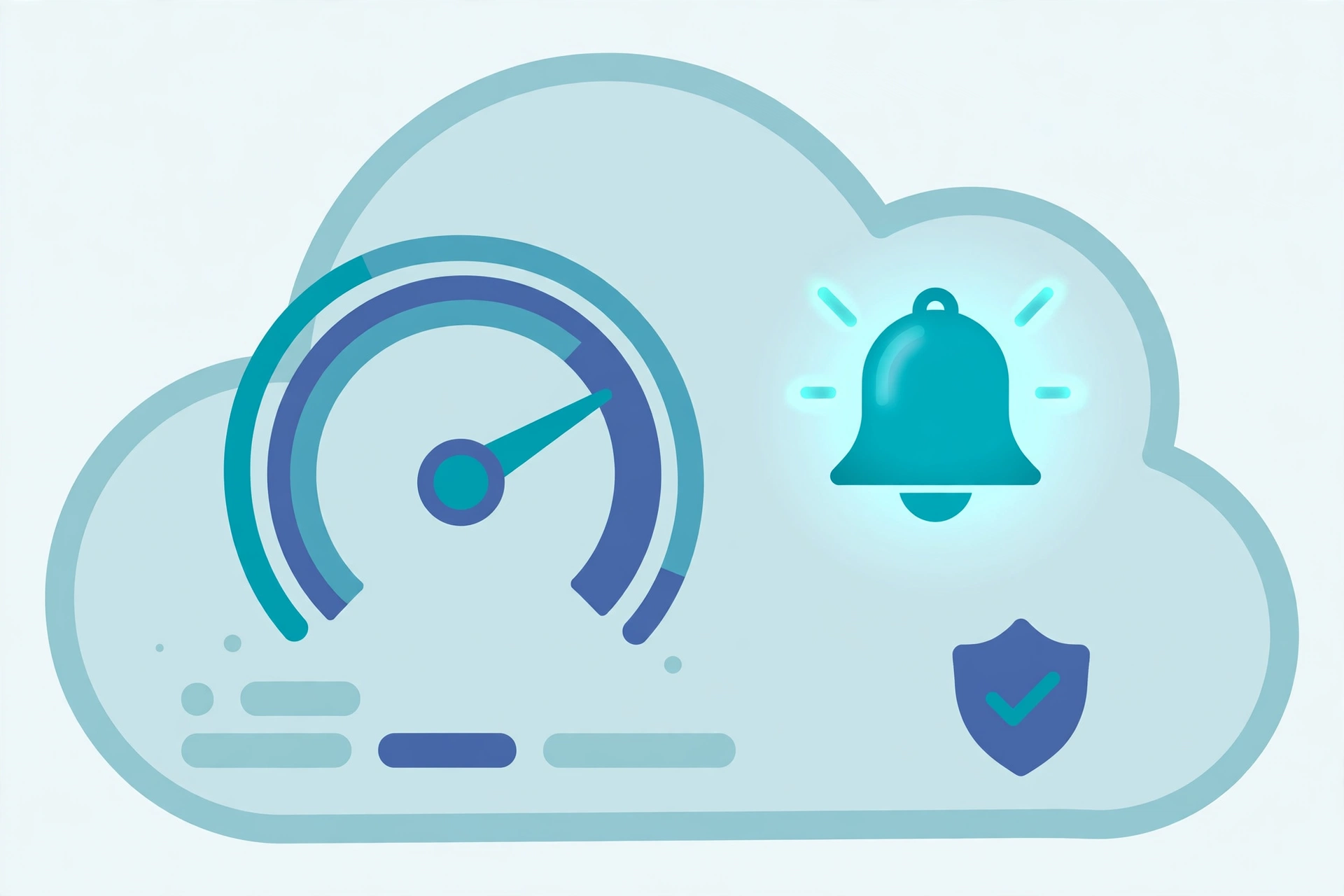
Under the hood, anomaly detection is pattern recognition, not magic. Your cloud provider builds a baseline from your historical spending for each service — typically the last several weeks — and learns the shape of normal: weekday versus weekend usage, end-of-month reporting peaks, the slow growth trend as your product gains users. Then it compares each day’s actual cost against the expected range for that day.
When spending falls outside that expected range by more than your chosen threshold, it raises an alert naming which service spiked, how much it cost versus what was expected, and roughly when the spike started. That start time matters — a spike beginning at 2 a.m. on Saturday points straight at the overnight batch job, not at daytime web traffic.
Two things anomaly detection is not. It is not a budget cap: it will not stop your spending or shut anything down. And it is not perfect on day one — a brand-new account with two weeks of history has no baseline worth trusting, so expect the first month to be a tuning period, not a finished system.
How do you set up anomaly detection in AWS?
AWS Cost Anomaly Detection is free and lives inside AWS Cost Explorer, so there is nothing to install. The setup takes about ten minutes:
- Open the Billing and Cost Management console and go to Cost Anomaly Detection. Create a monitor: a service monitor watches one AWS service across your account, or a linked-account monitor watches everything in one member account. Start with one service monitor for your biggest cost driver — usually EC2, RDS, or data transfer.
- Set the alert threshold. AWS lets you trigger on a percentage above expected spend, an absolute dollar amount, or both. For a small team, start with 30% above expected spend AND at least $25 over — the percentage catches proportional spikes on small services, and the dollar floor stops $3-to-$5 wobbles from spamming your inbox.
- Choose who gets alerted. Route alerts to a shared team email or a Slack channel through Amazon SNS, not to one person’s inbox. An alert that only one person sees is an alert that gets missed during a holiday.
- Wait for the first alert, then read it properly. AWS shows the expected cost, the actual cost, and the services involved. On the first few alerts, judge whether each was real, and tighten or loosen the threshold based on what you learn.
One AWS-specific gotcha: Cost Anomaly Detection evaluates daily, with data that can lag by up to 24 hours. It is an early-warning system, not a real-time tripwire — which is why it pairs with, rather than replaces, billing alerts.
How do you set it up in Azure and Google Cloud?
Azure’s version is anomaly detection inside Azure Cost Management. Enable it under the subscription or management group you want to watch, set alert rules for the services and resource groups that matter most, and route alerts to an action group that emails your team or posts to a webhook. Scope alerts per resource group rather than per subscription: a spike in production deserves a different response than a spike in a sandbox group.
Google Cloud users get the most value from combining two things: a budget alert set at an amount that would genuinely hurt, scoped per project so a runaway experiment in one project cannot hide inside the spending of a healthy one, and the billing anomaly insights that flag unusual daily spend per project.
Across all three clouds, the setup pattern is identical: pick the scope, pick the threshold, pick the humans. The provider names change; the discipline does not.
How do you read your first alert without panicking?
Your first real alert will feel urgent, and most first alerts are not emergencies. Work through it in this order. First, check the service and the start time — that combination usually names the culprit. Second, check whether anything changed recently: a deployment, a new feature, a scheduled job, a teammate testing something. Third, check whether the spike is still growing or has already stopped; a one-off spike that ended on its own needs a note, not a midnight fix. Fourth, decide the response: kill the resource, roll back the change, or accept the cost because it matches a real business event, like a successful launch.
Then write it down. A one-line log — date, service, cause, action — turns anomaly alerts from a stream of surprises into a history your team learns from, and it is the evidence that justifies the next FinOps conversation with your manager: here is what we caught, here is what it would have cost uncaught.
What are the common mistakes that make anomaly detection useless?
The first mistake is alerting one person. Alerts routed to a single inbox die during holidays, sick days, and job changes. The second is setting the threshold too tight — 10% above expected on a variable workload generates so many false alarms that the team starts ignoring all of them, including the real ones. The third is setting it up and never reviewing it: thresholds tuned for a five-person startup will be wrong when the team doubles. Put a monthly fifteen-minute review on the calendar: which alerts fired, which were real, what changed.
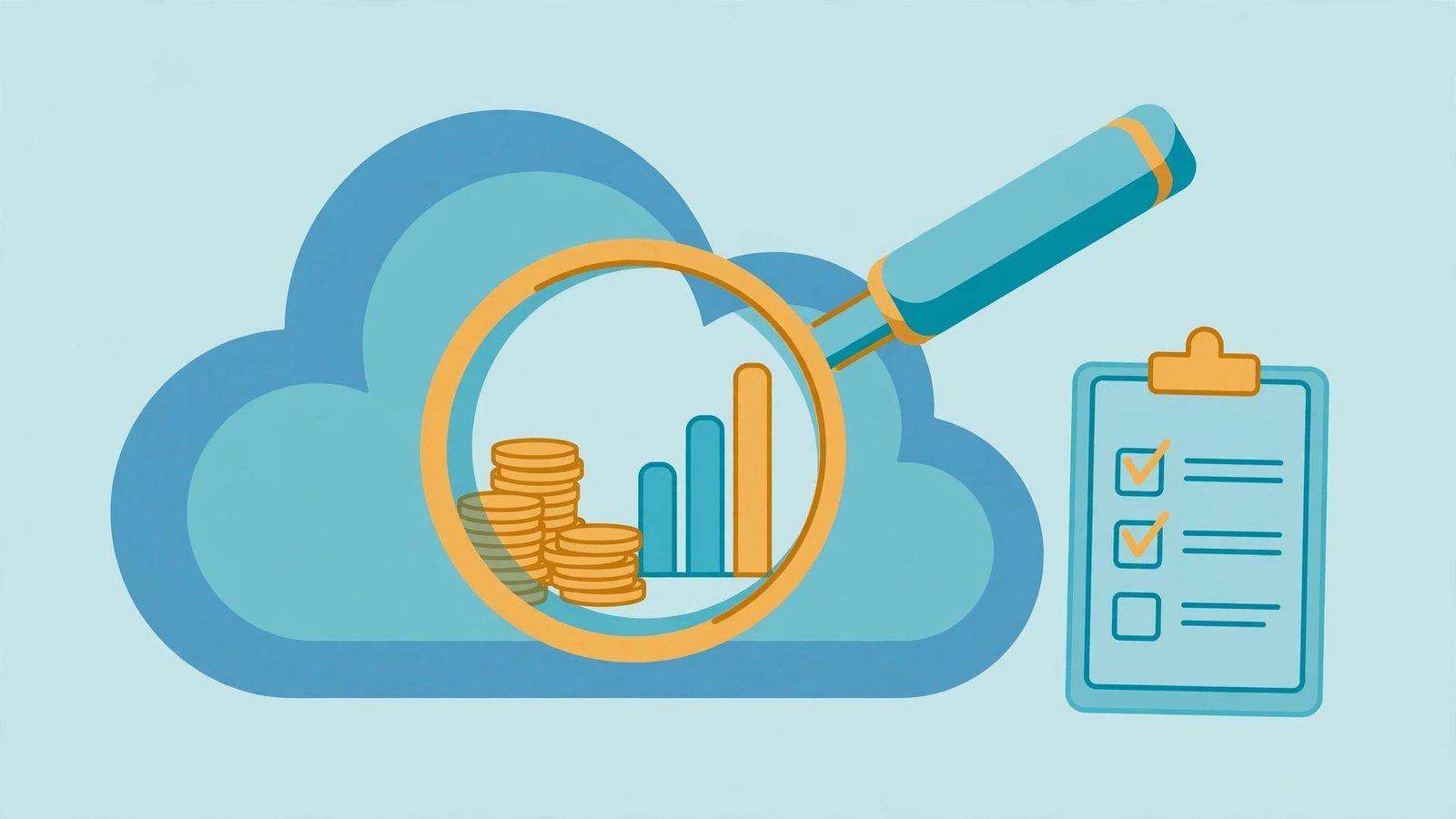
The fourth mistake is treating anomaly detection as the whole cost strategy. It catches surprises; it does not find waste. Idle instances, oversized databases, and forgotten storage volumes cost the same amount every single day, so they never look anomalous — they are just quietly expensive. Pair anomaly alerts with a regular cost audit and you cover both directions: the sudden spike and the slow leak.
Cloud cost anomaly detection at a glance
| Step | What it means |
|---|---|
| Baseline | Learns normal spend from the last several weeks: weekday versus weekend usage, end-of-month reporting peaks, and the slow growth trend |
| AWS setup | Free inside Cost Explorer. Start with one service monitor for the biggest cost driver, usually EC2, RDS, or data transfer. Threshold: 30 percent above expected spend AND at least 25 dollars over. Route alerts to a shared team email or Slack channel through Amazon SNS |
| Azure setup | Anomaly detection inside Cost Management. Scope alerts per resource group, not per subscription, and route them to an action group that emails the team or posts to a webhook |
| Google Cloud setup | Combine a budget alert per project, set at an amount that would genuinely hurt, with billing anomaly insights that flag unusual daily spend per project |
| Reading your first alert | Check the service and the start time, check whether anything changed recently, check whether the spike is still growing or has stopped, then decide: kill the resource, roll back the change, or accept the cost. Log the date, service, cause, and action |
| Mistakes to avoid | Alerting one person only; a threshold set too tight, such as 10 percent, which creates false alarms; never reviewing thresholds, so add a monthly fifteen-minute review; treating detection as the whole cost strategy instead of pairing it with a regular cost audit |
Related reading: our FinOps explainer, how to set up AWS billing alerts so you never get a surprise bill, and how to lower your Azure bill with reserved instances versus spot pricing.
FAQ
Is cloud cost anomaly detection free?
On AWS, Cost Anomaly Detection itself is free, and Azure Cost Management anomaly features are included with your subscription at no extra charge. Google Cloud’s billing insights are likewise included. The expensive option is not using any of them.
How long does it take before anomaly detection becomes reliable?
Expect two to four weeks of baseline building before alerts settle down, and a further month of threshold tuning before the signal-to-noise ratio feels right. New accounts and highly seasonal workloads take longer. Treat the first month as calibration, not as a finished safety net.
Will anomaly detection stop overspending automatically?
No. It alerts; it does not act. No provider’s anomaly monitor will shut down resources or cap spending on its own. If you want automatic protection, pair it with billing alerts, budget actions, or service control policies that limit what can be launched in the first place.
Do I still need budget alerts if I have anomaly detection?
Yes, and this is the pairing most small teams get wrong. Anomaly detection catches unusual days; budget alerts catch slow, steady overspend that never looks unusual on any single day. Run both: anomaly alerts for spikes, budget alerts for the monthly total.